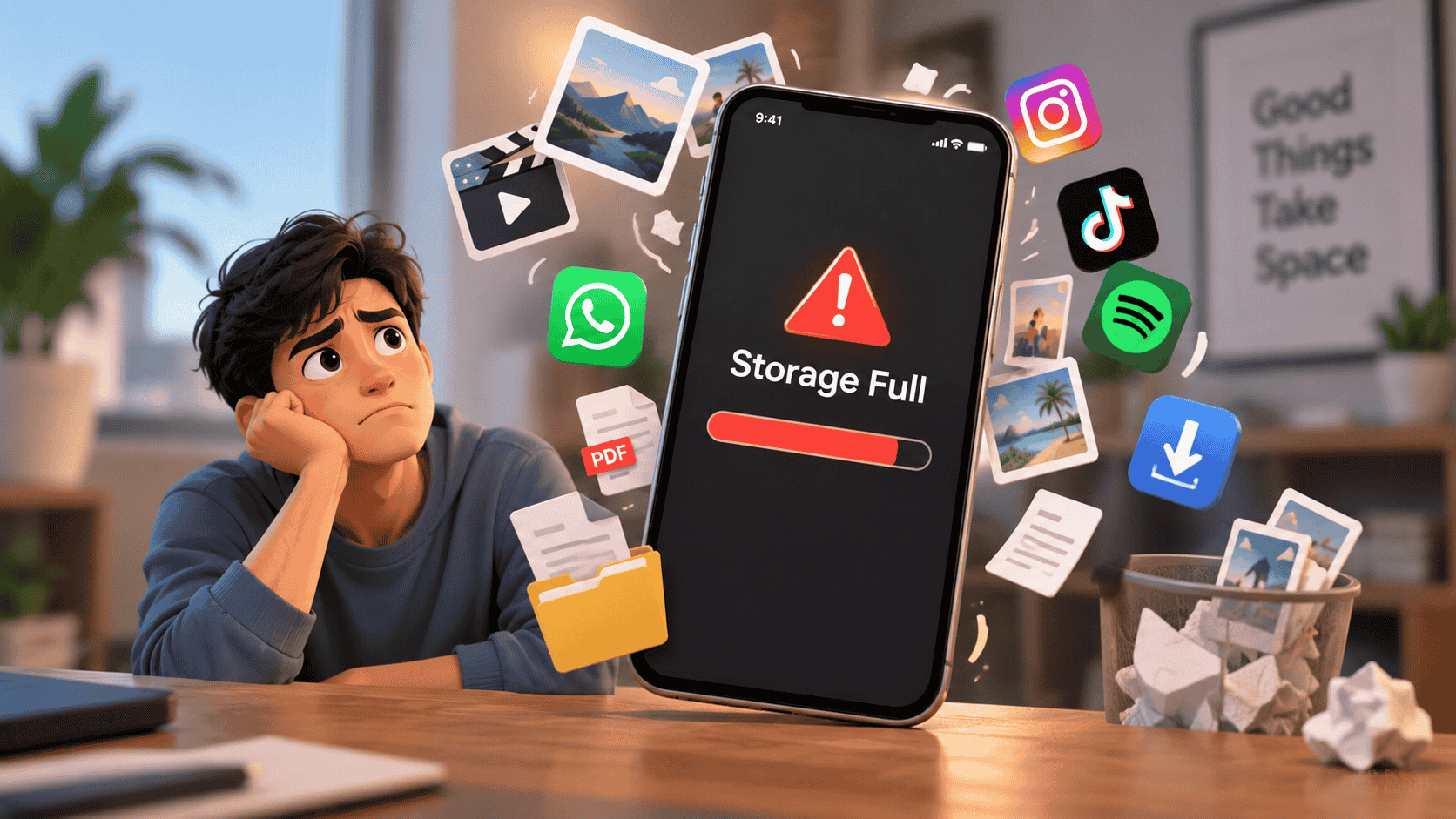
You may have experienced it: your phone keeps showing the “Storage Almost Full” notification, even though you don’t remember downloading that many files. You delete a few photos, remove an unused app, and within days, your storage is full again.
The problem is that photos and videos aren’t the only things consuming space. Apps, cached files, downloads, duplicate media, and even old messages can quietly take up several gigabytes.
Here are 10 common things that could be filling your phone storage.
1. Photos and Videos
Photos are one of the biggest storage consumers, especially when you regularly take high-resolution pictures or record videos. A few minutes of high-quality video can occupy hundreds of megabytes.
Check your gallery and remove unwanted screenshots, blurry photos, duplicate images, and old videos you no longer need.
2. WhatsApp Media
WhatsApp can quickly consume storage because photos, videos, GIFs, documents, and voice messages may accumulate over time.
Open WhatsApp’s storage management section to see which chats are using the most space. Large videos and forwarded media are often worth clearing first.
3. Cached App Data
Apps store temporary files called cache to load content faster. While individual cache files may be small, frequently used apps can accumulate a significant amount of cached data.
Social media, browsers, streaming apps, and shopping apps can be particularly heavy.
4. Downloaded Files
Files downloaded from browsers, messaging apps, email, and other services can remain on your phone long after you’ve used them.
Check your Downloads folder regularly and remove old PDFs, ZIP files, videos, images, and documents you no longer require.
5. Unused Apps
You may have dozens of apps installed that you haven’t opened for months. Some apps can occupy hundreds of megabytes or more when their associated data is included.
Review your installed apps and uninstall those you no longer use.
6. Offline Videos and Music
Streaming services often allow users to download content for offline viewing or listening. These downloads can quietly consume several gigabytes.
Check apps such as music and video streaming services and remove offline content you’ve already watched or listened to.
7. Duplicate Photos and Videos
Repeated downloads and shared media can result in multiple copies of the same file. This is especially common when images are received through messaging apps and then saved manually.
Use your phone’s built-in duplicate detection feature, if available, to identify unnecessary copies.
8. Screen Recordings and Screenshots
Screenshots and screen recordings are easy to forget about. A long screen recording can take up considerably more space than a normal photo.
Search your gallery for old screen recordings and screenshots and delete anything you no longer need.
9. Large Documents
Documents may not seem like a major storage problem, but large presentations, PDFs, videos, and work files can add up over time.
Open your file manager and sort files by size. This makes it easier to identify the biggest files and decide whether they should be deleted or moved elsewhere.
10. App Data
Deleting an app doesn’t always mean you’ve noticed how much data it was storing. Some apps can accumulate significant amounts of user data, downloads, and temporary content.
Check your phone’s storage settings to see which applications are consuming the most space. You can then clear unnecessary data or remove apps that you no longer use.
A Better Way to Free Up Storage
Don’t start deleting files blindly when your phone shows a storage warning. Open the Storage section in your phone’s settings and identify what’s actually consuming the most space.
If photos and videos are responsible, clean your gallery. If applications are taking up most of the space, review unused apps and their stored data. If messaging apps are the problem, clear large media files from specific conversations.
And before deleting anything important, make sure you have a backup.
A few minutes of organized cleanup can often free up several gigabytes—and prevent that annoying “Storage Almost Full” notification from appearing again.
Stay tuned to Article Basket for more useful technology tips, updates, and everyday solutions.